Getting started
From install to your first accented character — it only takes a minute.
Installation
Install the extension from one of these two stores:
- Chrome Web Store — chrome.google.com/webstore
- Microsoft Edge Add-ons — microsoftedge.microsoft.com/addons
Thank you for considering installing the extension!
How to use
After installing, click the extension's icon in your toolbar to open its popup.
1. Select a language
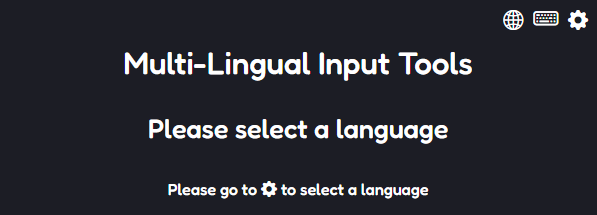
On first launch you'll be prompted to select a language. You can open settings at any time via the gear icon in the top-right of the popup.
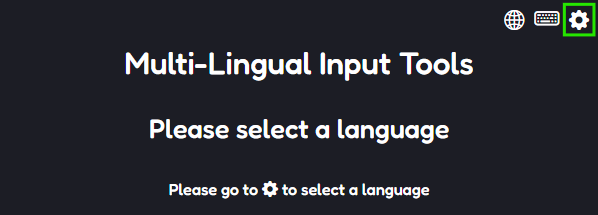
2. Configure the options page
By default, no language is selected and the color mode is dark. Both can be changed on the options page:
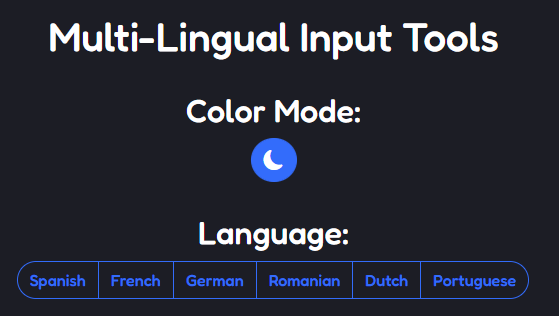
The sun and moon icons represent the current color state — a sun for light mode, a crescent moon for dark mode. Clicking the icon toggles the state across every page of the extension. To change language, simply click the desired one; it takes effect everywhere instantly.
3. Use the popup
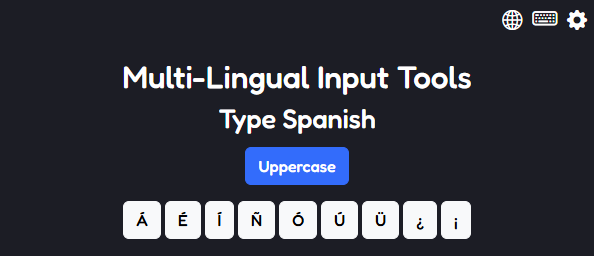
After selecting a language, the popup reflects it. For example, choosing Spanish shows Spanish accent buttons:
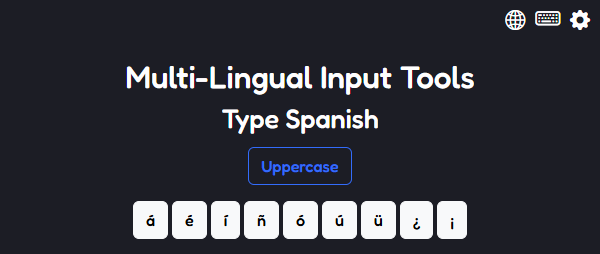
Click any accented letter or symbol button to copy it to your clipboard. To copy a capital letter, either press Shift on your keyboard or toggle the Uppercase button.
4. The Full Typing Area (FTA)
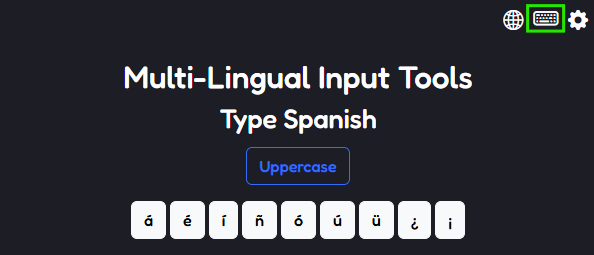
The Full Typing Area helps you write longer text in one place, with quick access to the accented letters you need. Open it via the keyboard icon in the top-right of the popup:
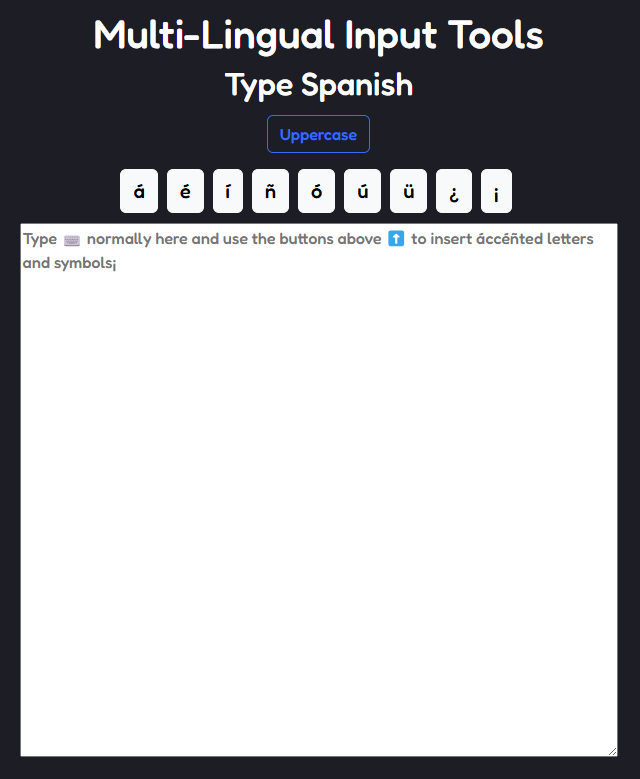
Click any button to insert its character into the typing area. Just like the popup, holding Shift or toggling Uppercase makes the buttons insert their capitalized versions.
That's it — you're ready to use the extension to the full extent of its capabilities. 😎